
eduroam Managed IdP

Connecting with Windows Devices

1. Download the installer

Open a web browser and go to cat.eduroam.org. 
Click Click here to download your eduroam installer. 

2. Select your organisation

From the list, select your organisation. 
If needed, use the search and country filters to find it. 

image-20260430-052707.png

3. Choose your user group (if asked)

If you see a page titled Select the User Group, select the option recommended by your organisation. 
Click Continue.

4. Continue to the information page

You will be shown a notice saying your local administrator has specified a redirect to a local support page. 
Click Continue to open the information page.

image-20260504-220226.png

5. Open the apps page

On the information page, click Apps.

Screenshot 2026-05-08 at 12.21.07 PM.png

6. Download the Windows app

Click Windows to download the geteduroam app. 
Open the downloaded .exe file to start the app. 
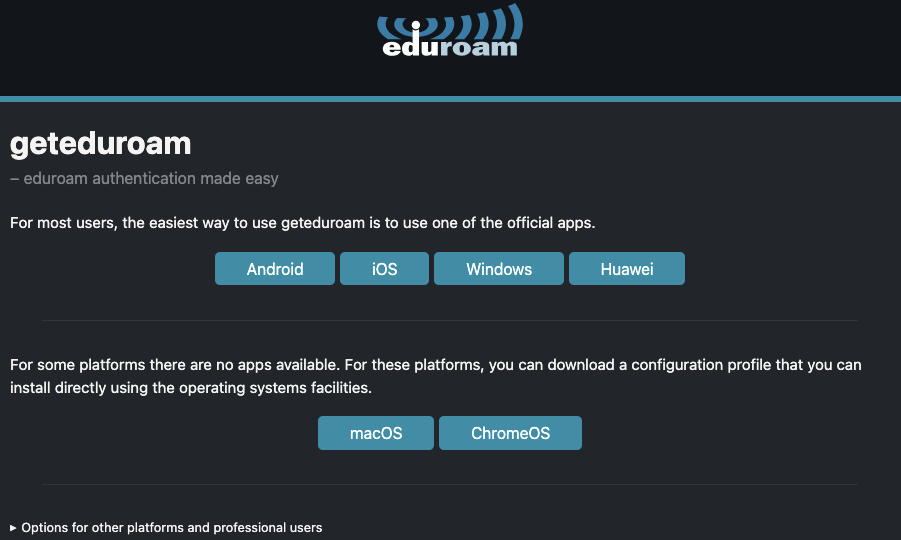
image-20260430-053607.png

7. Start the connection

In the geteduroam app, click Connect to eduroam.
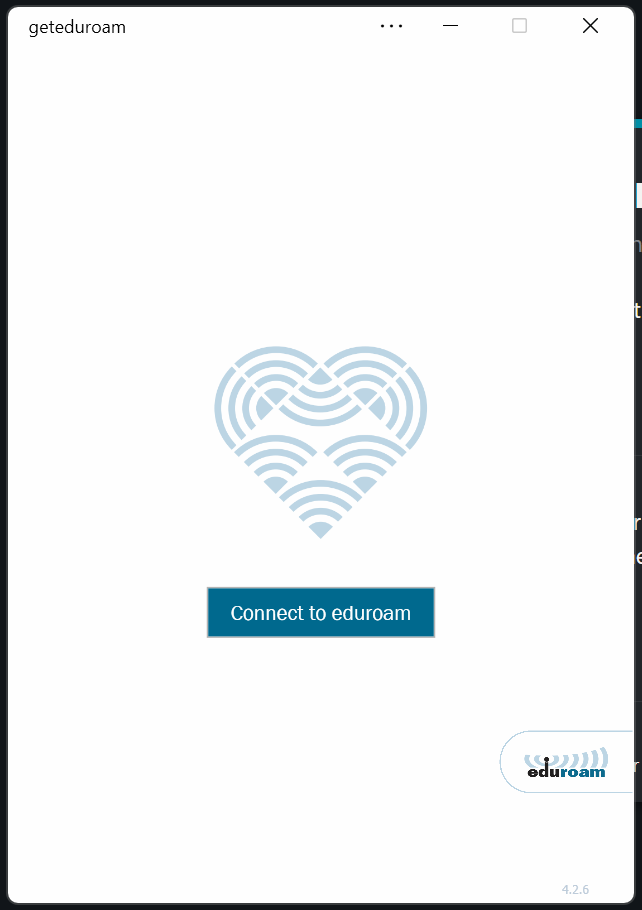
image-20260512-041011.png

8. Find your organisation

Search for your organisation and select it. 
Click Next.
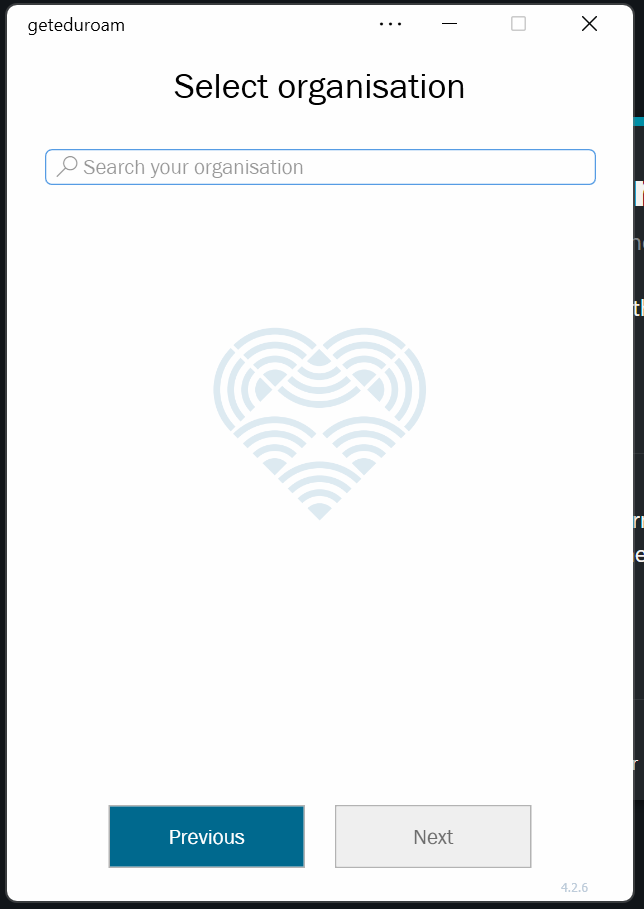
image-20260512-041614.png

9. Choose your profile (if asked)

If prompted, select the profile you normally use. 
Click Next.
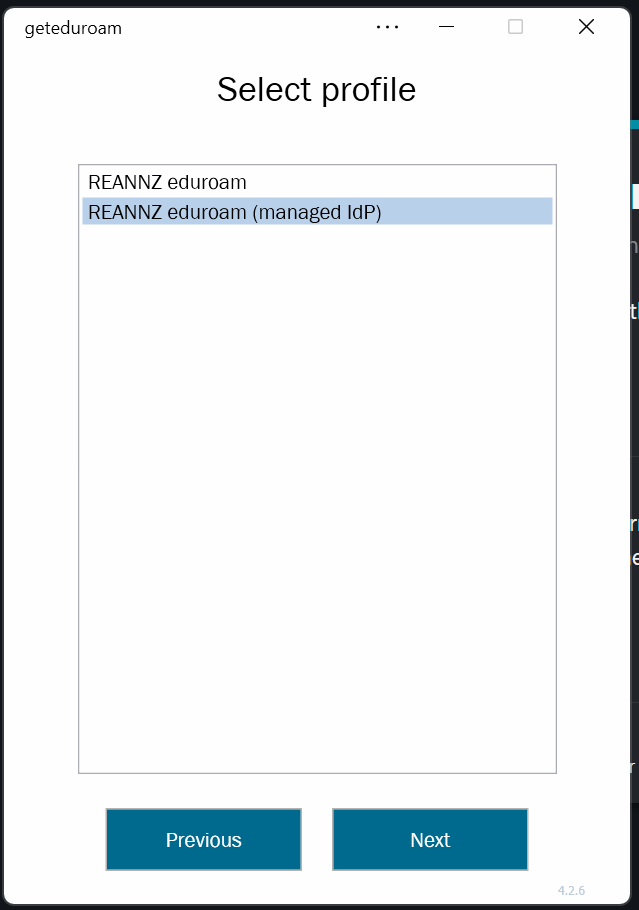
image-20260512-041901.png

10. Sign in

Your web browser will open. 
Sign in using your usual organisation login.
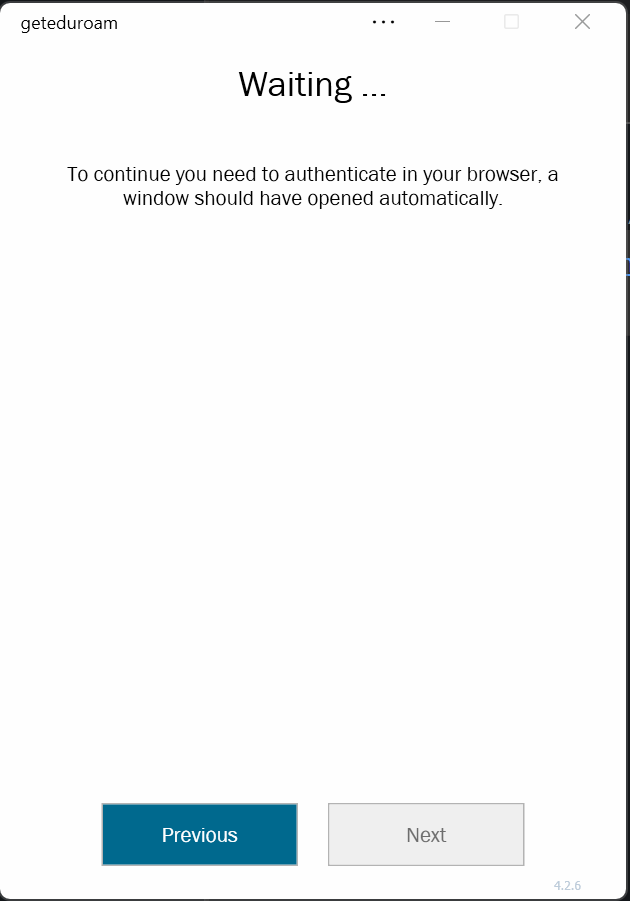
image-20260512-043013.png


11. Approve the connection

When prompted, click Approve to allow the connection.
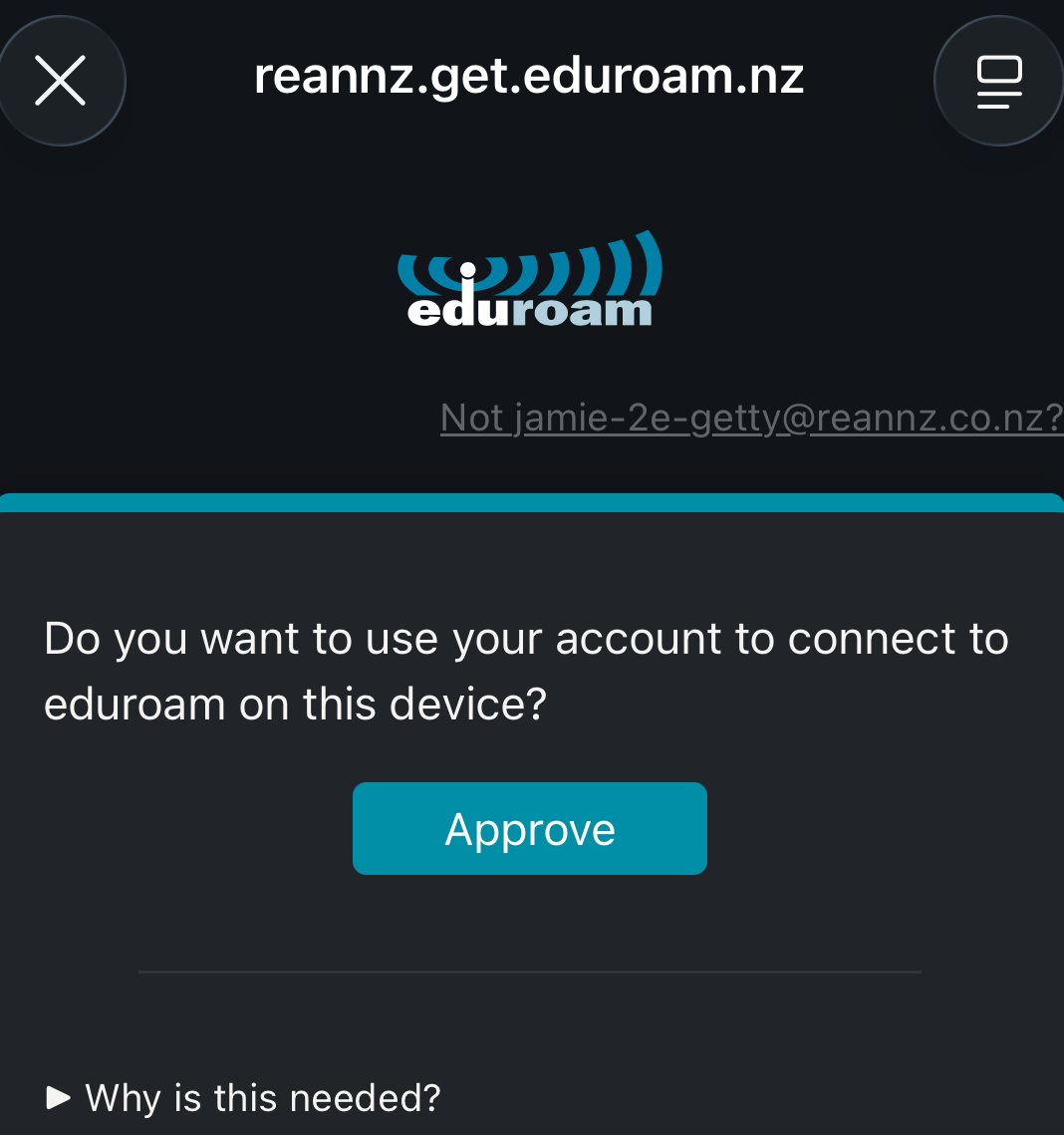
image-20260504-030601.png

12. Confirm you are connected

Your device will connect automatically. 
You are connected when you see Connected and secured for the eduroam network.
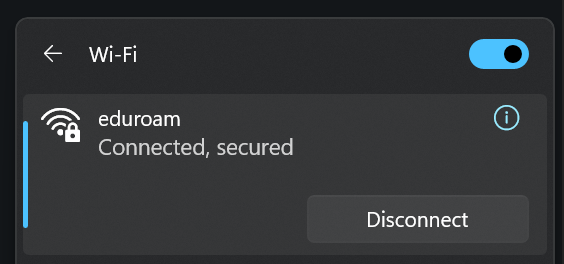
image-20260512-043529.png