1. Install the app
Download the geteduroam app from the Google Play Store.
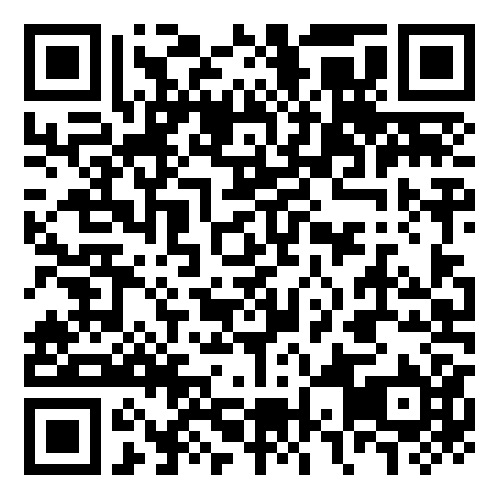
You can scan this QR code to open the Play Store page.
2. Open the app and find your organisation
Open the app.
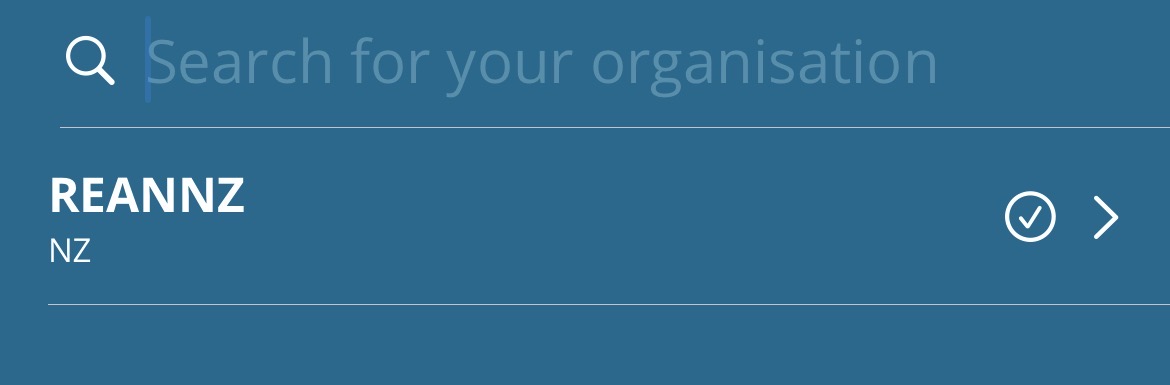
Search for your organisation and select it from the list.
3. Choose your profile (if asked)
If prompted, select the profile you normally use or whichever is appropriate (for example, staff or student).
Tap Connect.
If prompted, tap Continue.
4. Sign in
You’ll be taken to your organisation’s sign‑in page.
Sign in using your usual organisation login.
5. Approve the connection
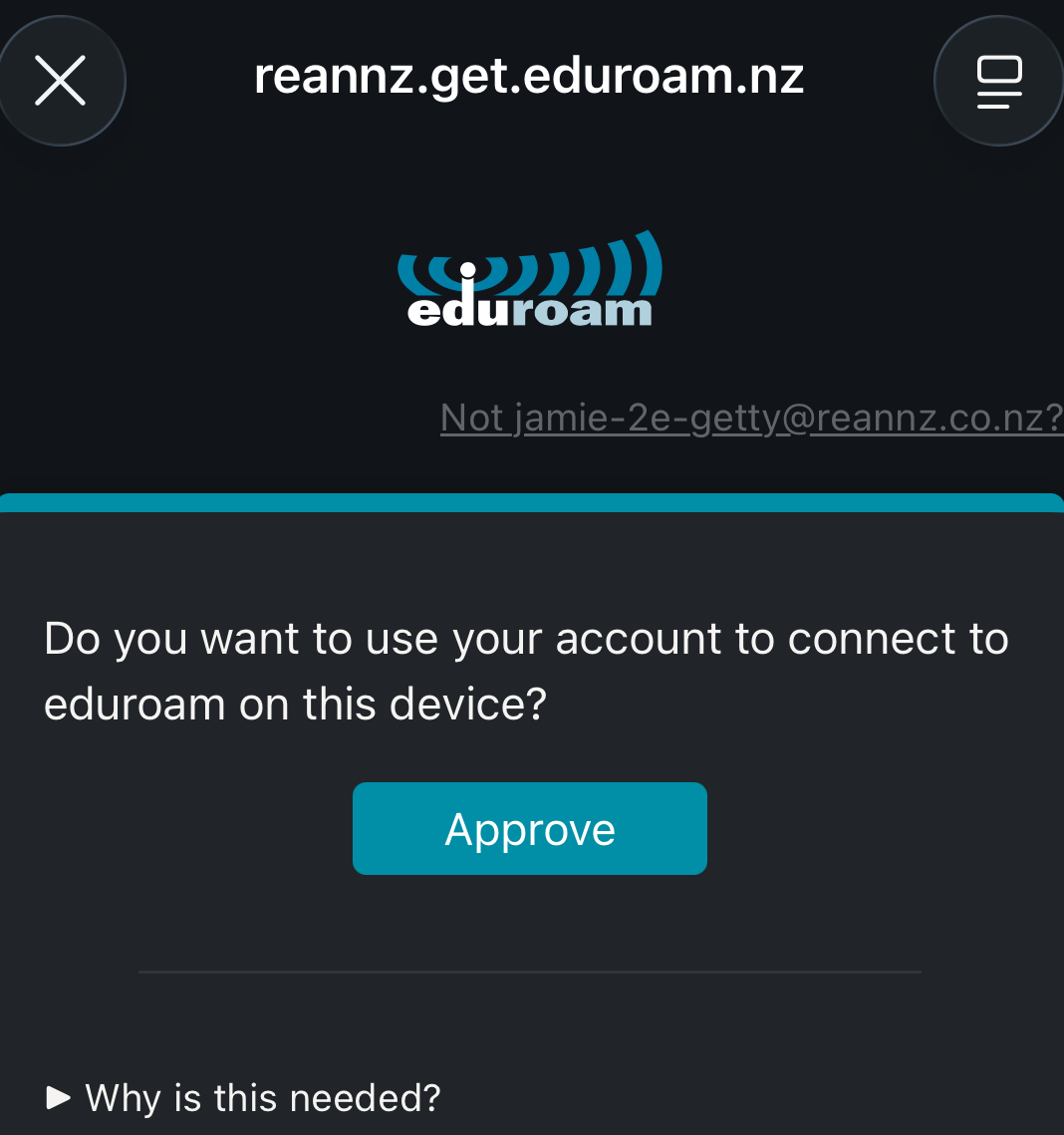
When prompted, tap Approve to allow the connection.
6. Allow suggested networks
When asked to allow the app to connect to suggested networks, tap Allow.
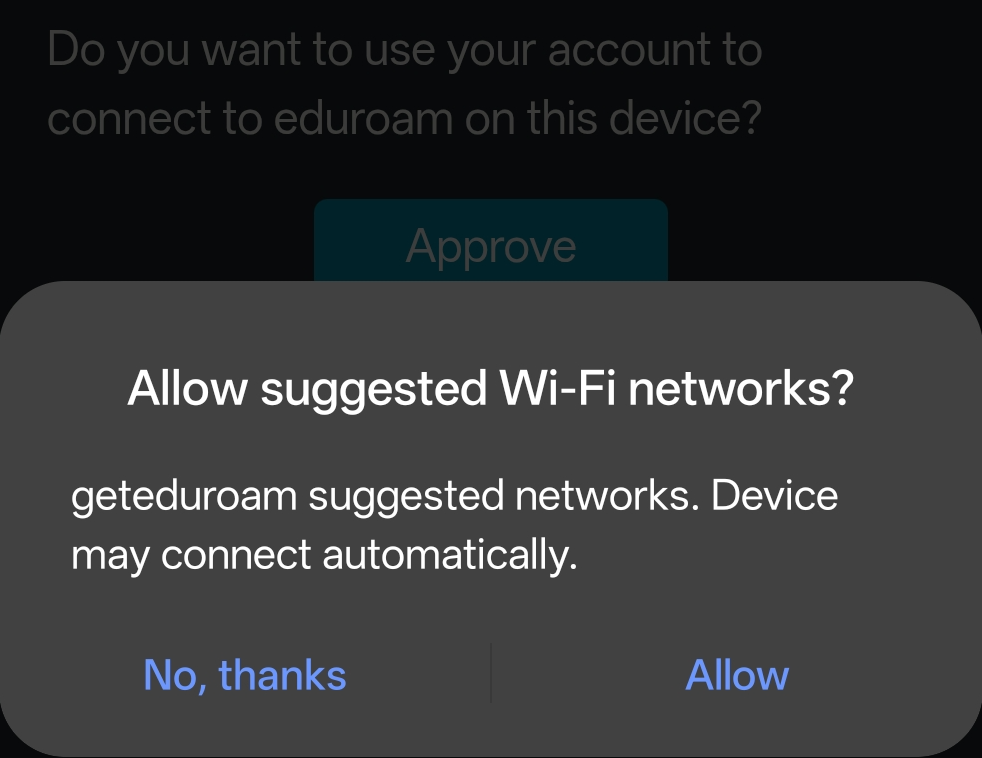
You may be asked to allow notifications from the geteduroam app.
This does not affect your connection. You can choose Allow or Don’t allow.
7. Save the network
When prompted to save the eduroam network, tap Save.
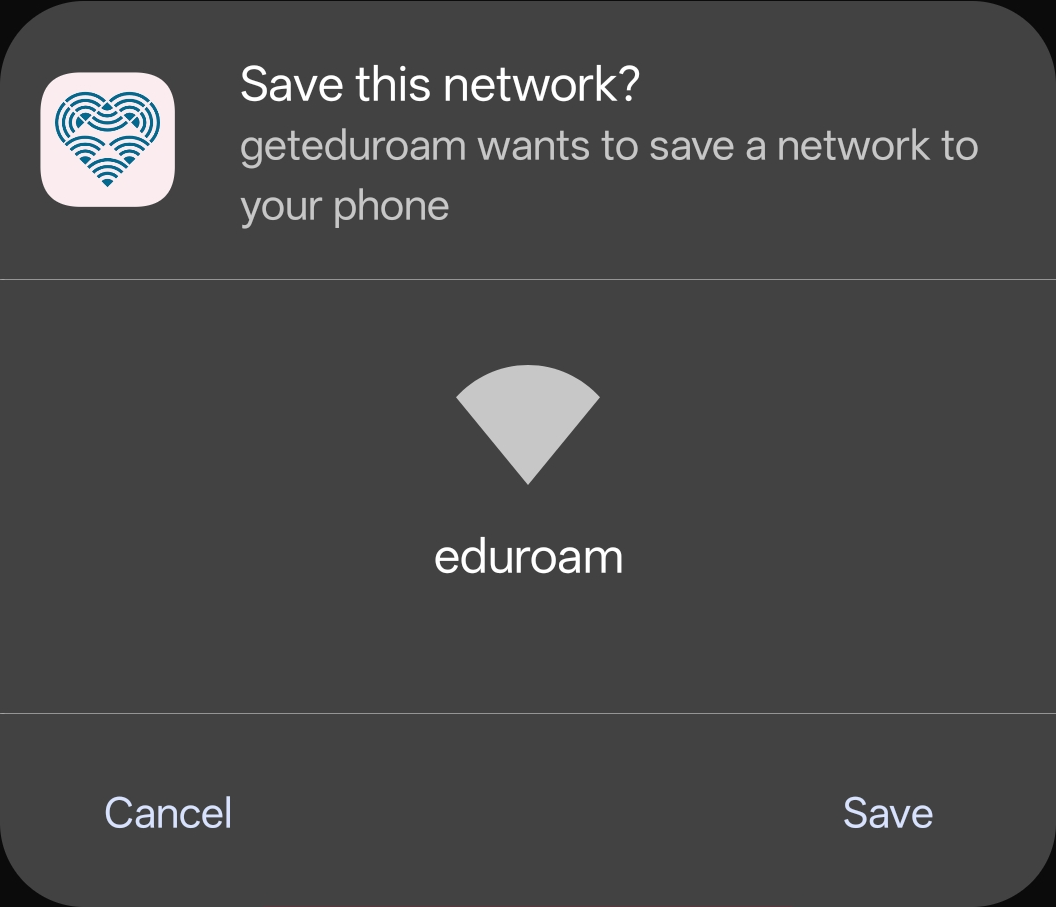
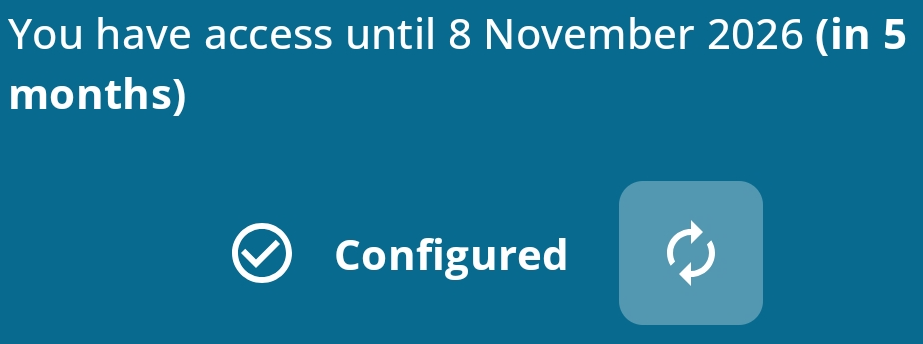
You may briefly see a message saying Wi‑Fi configured.
8. Confirm you are connected
Your device will connect to eduroam automatically.